
The scientific way to measure how high things fly

Quick Start
Welcome!
This is the second generation of the very popular AltimeterOne. For this version, we increased the size of the battery and moved to a more advanced bitmapped display. There’s also a new History feature that lets you review your last 100 flights.
This guide was designed to get you started. More complete information is available online at www.jollylogic.com. You can also shop for accessories and read stories about how others are using AltimeterOne on our News page.
We’d love to hear from you, as well.
Happy flying!

John Beans
Founder, Jolly Logic
Danville, California
john@jollylogic.com
- 1A quick button click turns it on and off
- 2Hold the button to open the menu…

- 3…and let go to choose an item
- 4Select Launch before each flight
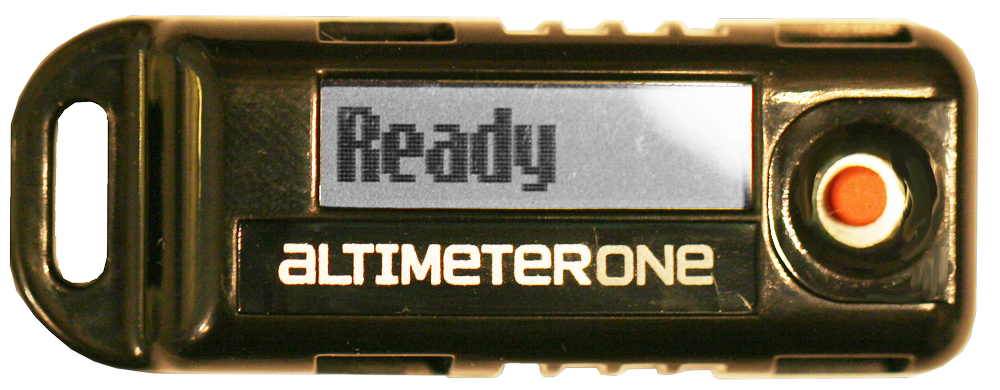
- 5When you see Ready it’s ready to fly!
Recharging
Plug the AltimeterOne cable into any USB port to recharge. If you don’t see a light when you plug it in, the USB port must not have power. Try another one.
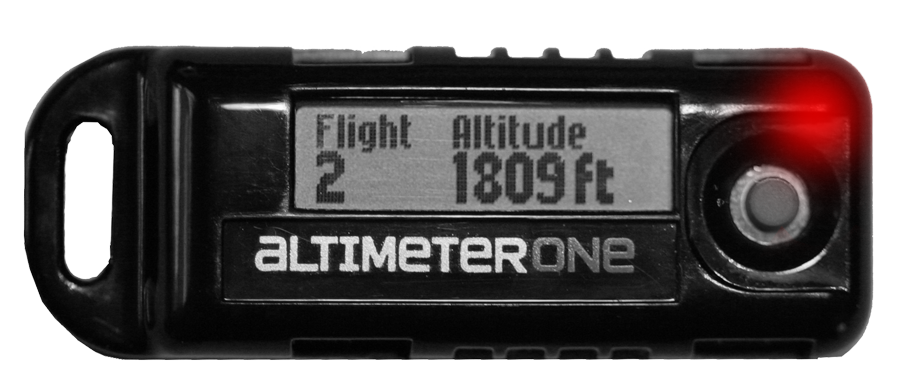
Red Light
Your altimeter is charging correctly. Recharging should be complete in less than 2 hours.
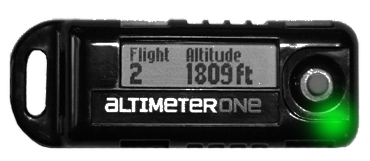
Green Light
Your altimeter is 100% charged.
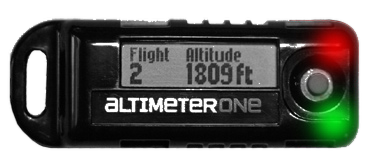
Red + Green Light
Problem! Either this USB port is not providing enough power, or your battery has a problem.
- Try another USB port.
- Open your altimeter and make sure the battery connector is snapped in. See our website for instructions on how to do this.
- Contact support@jollylogic.com.
Frequently Asked Recharging Questions
Does It Hurt to Charge It All the Time?
Nope. In fact, Lithium Polymer batteries like the one in the AltimeterOne prefer to be charged all the time, and there’s no “memory effect” to worry about.
What Type of Connector Does AltimeterOne Have?
The very common USB Micro-B.

Can I Use My Own Charger?
Sure. AltimeterOne needs less current than most devices (about 90 milliamps), so if you happen to already have a USB charger for something you own (like your phone or a headset), you can use that for AltimeterOne. Electronics stores usually have a nice selection of “USB Micro-B” rechargers.
Why Does the Red Light Come On Every Time I Plug It In?
Even when it is 100% charged, the red light will come on when you first plug in AltimeterOne while the recharging logic checks the status of the battery. In just a few moments, it will turn green again. This is normal behavior.
Will the Battery Eventually Wear Out?
Well, yes, all batteries wear out. If your battery life drops below 4 hours, you should consider replacing it. This is a unique battery; Jolly Logic is the only place you can get a replacement. See our website for instructions.
Visual Tour
Attachment Point
Here is where you fasten your altimeter.
(Also, see the Mounting Tips section.)
Push Button
- Quick press for ON/OFF
- Hold the button to see more options.
- Release the button to pick an option:
- Launch – Begin next flight
- History – Show last 100 flights, most recent first
- Realtime – Begin next flight, with realtime altitude
- Units – Switch between feet and meters
- Erase – Erase all flights from memory
- Cancel – Leave menu, do nothing
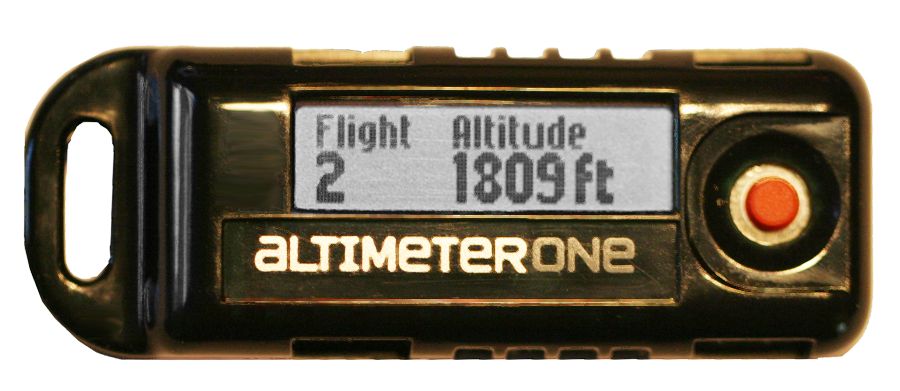
Display
Displays the peak altitude after each flight, and the current battery charge level.
Be sure to select Launch and see “Ready” before each flight.
Recharging Connector
This is a USB Micro-B port. Plug the included cable into standard USB ports to recharge.
See the Recharging section for more info.
Mounting Tips
Let It Breathe: Air Holes in Containers
AltimeterOne uses an atmospheric pressure sensor to detect altitude, so it needs to be exposed to outside air pressure. If you put it in a container, or if your flying model is airtight, be sure to add a few holes to allow air to escape at altitude.
The larger the airspace is in your model, the larger the holes should be. Remember: if your model can rapidly gain or lose altitude, your vent holes need to allow air to rapidly enter and exit the enclosure.
Avoid Really Strong Airflow
Rapid gusts of wind and turbulence can create pressure waves that can sometimes confuse AltimeterOne and result in odd readings.
If you experience odd readings and are exposing AltimeterOne to airflow during flight, try wrapping it in a little fabric pouch to break up the airflow around it.
Specialized Mounting Accessories
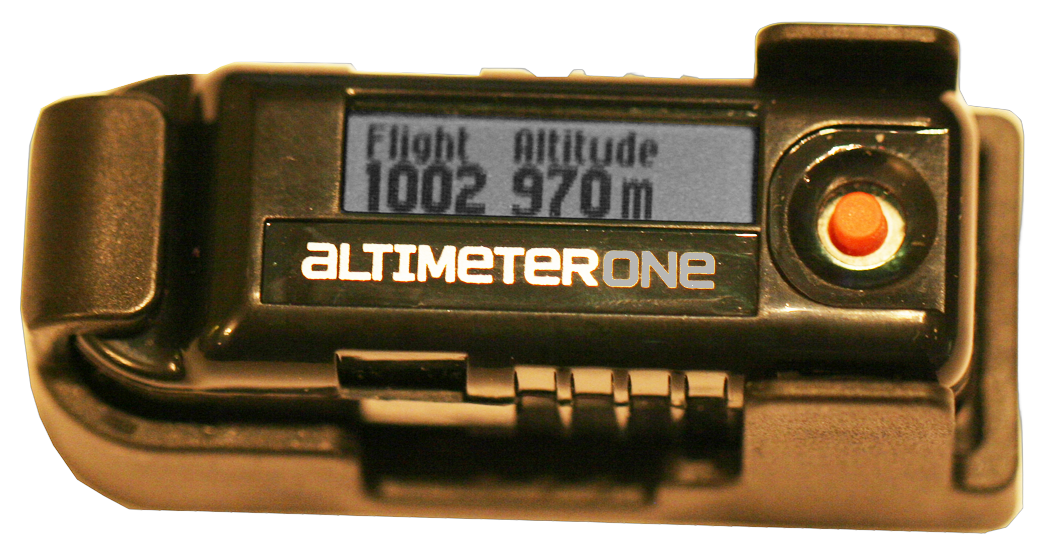
Check the Jolly Logic website for mounting accessories such as the Snap Mount. The Snap Mount can be taped, screwed, or attached with Velcro™ to hold it in place. AltimeterOne can then be quickly snapped in place.
Other Jolly Logic resellers may offer their own specialized mounting accessories for activities such as falconry.
Basic Flight Instructions
Before Each Flight
- Press and hold the button to bring up the menu
- Let go of the button when you see Launch
You should see Ready on the screen. You are ready to fly!
After Each Flight
- You will see the maximum altitude reached during flight
- The flight has been stored; you can turn the altimeter off or perform other activities safely.
Flight Logic
- When you select Launch or Realtime, AltimeterOne considers the current altitude of the altimeter to be Ground Level. For ultimate accuracy, enter these modes right at actual ground level.
- AltimeterOne ignores flights of less than 30 feet.
- AltimeterOne will automatically turn off after 2 hours from the time that the button was last pressed OR a new peak altitude was detected.
- AltimeterOne will continue to look for a peak altitude even if your flight descends and then goes back up several times during the flight.
- If a flight rises above 100 feet and then descends below 30 feet for 5 seconds, the flight is automatically considered over. AltimeterOne will save the maximum altitude and stop looking for a new one.
Using Other Features
Realtime Mode
Just like selecting Launch, EXCEPT
It also shows the current distance above ground level onscreen.
One of the most common uses of Realtime Mode is for videos: if you put AltimeterOne within view of the camera, you can record the altitude on your video.
The altitude shown is the height above ground level (when you select “Realtime”, the current altitude of the altimeter is set as “ground level.”)
The peak altitude is still stored, just like a regular flight using Launch.
To leave Realtime Mode, turn AltimeterOne OFF and then back ON again.
Don’t worry—the last flight is saved automatically.
History
When you select History, AltimeterOne will begin showing you the last 100 flights (if there are that many saved), starting with the most recent flight.
To leave History Mode, just click the button once.
Units
Selecting Units from the menu will switch from measuring in Feet to Meters, or from Meters to Feet. There is no loss of data in switching back and forth, and your choice of units is also used when flights are reviewed in History.
The Units setting will stay the same until you change it.
Erase
Removes all flight data from memory. Be careful—this cannot be canceled.
Support and Troubleshooting
For More Support
More info is available at www.jollylogic.com, including helpful videos, tutorials, FAQs, and troubleshooting guides.
Have questions or suggestions? Contact us at support@jollylogic.com. We’d love to hear from you, including your experiences with AltimeterOne.
Spare Parts
The plastic case, LCD display, and battery are user-replaceable. If you damage your AltimeterOne, please see www.jollylogic.com to order replacement parts and to see repair instructions.
Bonus Idea: Home Altitude Testing Chamber
Turn any clear plastic jug that has an airtight lid into a home altitude testing chamber. Just add a tiny pinhole to one corner. Place your other device inside with AltimeterOne in Realtime Mode, close the lid tightly, suck the air out, place your finger over the pinhole, and slowly let the air back into the container. AltimeterOne will display the pressure altitude inside the container.
- Measures peak altitude to 29,500 feet (9000 m)
- Stores 100 flights
- Rechargeable from any USB port
- Great for quadcopters, rockets, planes, helicopters, gliders, kites, hawking, and falconry
Visit www.jollylogic.com for complete information
Download the printed guide (PDF)
Jolly Logic® is a registered trademark of Jolly Logic, LLC.