
The altitude recorder controlled by your smartphone or tablet.
Get the app now:


Free for iPhone, iPad, and Android phones and tablets.
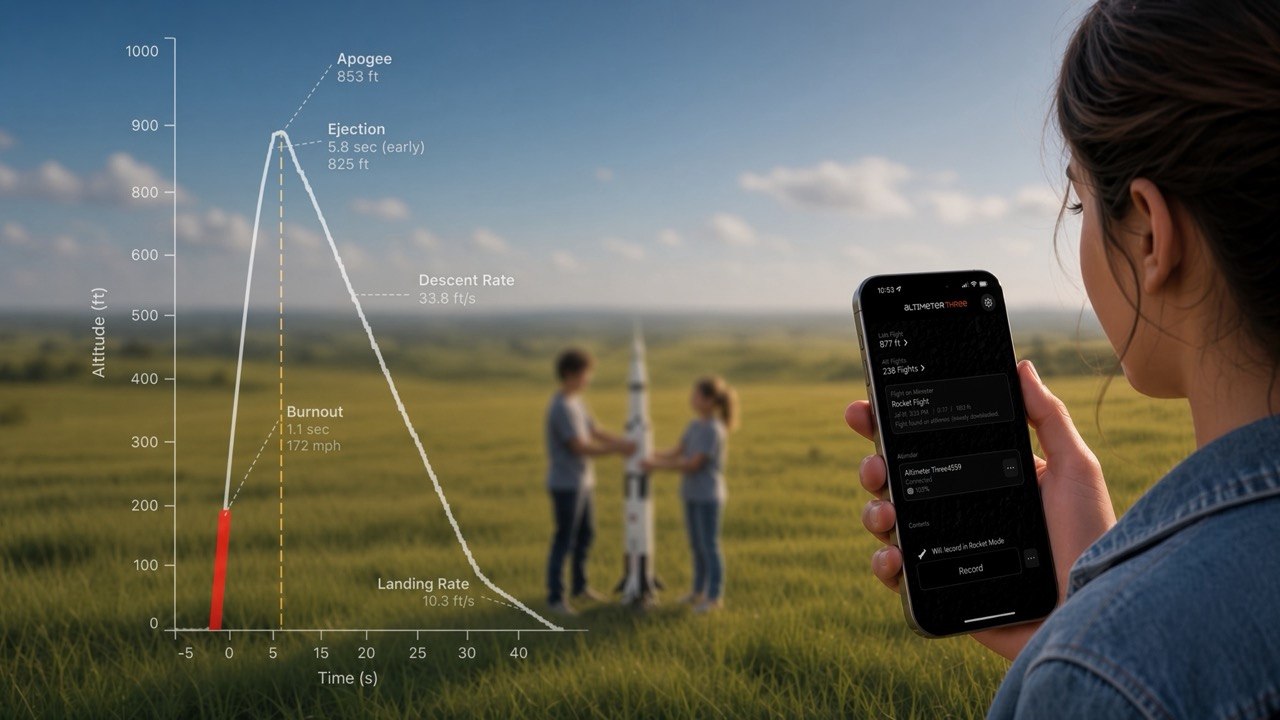
Quick Start List
Here’s all you need to know to get going.
- 1Install the App. Search for “altimeterthree” (all one word) in the Apple App Store℠ or Google Play™, download, then launch it. Allow GPS and Bluetooth so flights can be stamped with their location and the altimeter can connect.
- 2Customize your settings. Tap the gear icon. Choose a flight mode (rocket, plane, water rocket, and so on), feet or meters, and an “If found” phone number or email to show on the altimeter if it is lost.
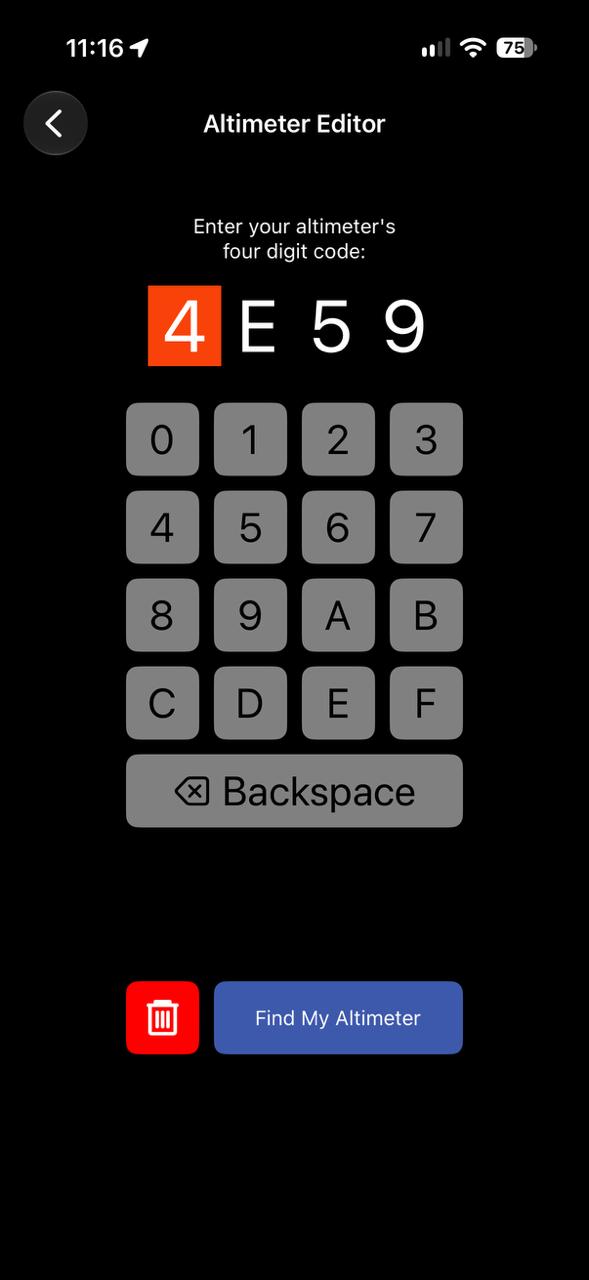
- 3Connect. On the home screen, tap Add Altimeter. Enter the four-digit code shown on the altimeter, then tap Find My Altimeter. The app looks for a Pi Edition first.
- 4Optional: turn on Cloud Sync in Settings so flights are backed up and available on your other phones and tablets.
- 5Make a test recording. Tap Record, wait a minute or two, then tap Stop (or press the altimeter button). The flight downloads into the app. Practice like this and flight day will go much more smoothly.
- 6Keep your battery charged. Recharge AltimeterThree every few months whether you use it or not. This prevents the battery from being ruined by discharging too far.
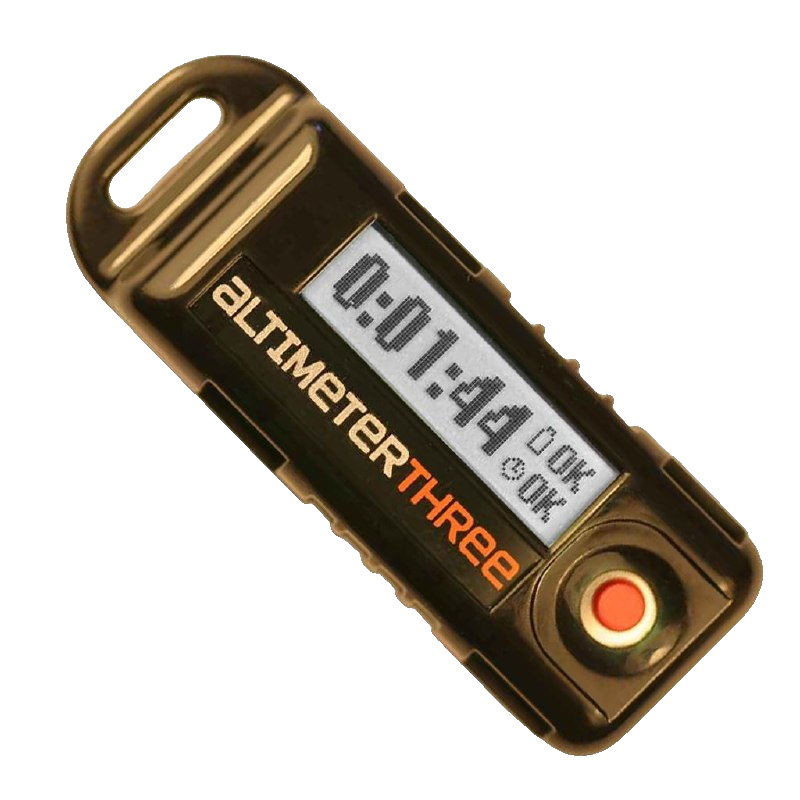
AltimeterThree App
Install the free AltimeterThree app from either the Apple App Store℠ or Google Play™ by searching for “altimeterthree” (all one word).
If you already use AltimeterThree, this is an update of the same app. Your existing flights stay on the device.
GPS Permission: Say Yes
When you first launch the app, it will ask permission to use the GPS on your phone. Allow this so AltimeterThree can save the location of your flights.
You can still use AltimeterThree without GPS, but your Map page will be blank.
Bluetooth Is Required
AltimeterThree needs Bluetooth turned on whenever you connect, start or stop a recording, or download a flight. You do not need to stay connected during the flight itself.
Keep Your Mobile App Updated
Jolly Logic will release new enhancements and fix bugs from time to time. Please keep the app updated to the latest version by searching for “altimeterthree” (all one word) in the appropriate app store.
Altimeter Software Updates
After you connect, the app may tell you a firmware update is available. You can also check from Settings. Keep the altimeter nearby, and make sure it has enough battery (at least 30%) before you start. Wait until the update finishes — the altimeter will restart on its own.
Connecting Your Altimeter
Your phone or tablet needs to be connected to start and end recordings, and to download flights — but not necessarily during the recording.
Connect a Pi Edition (BLE)
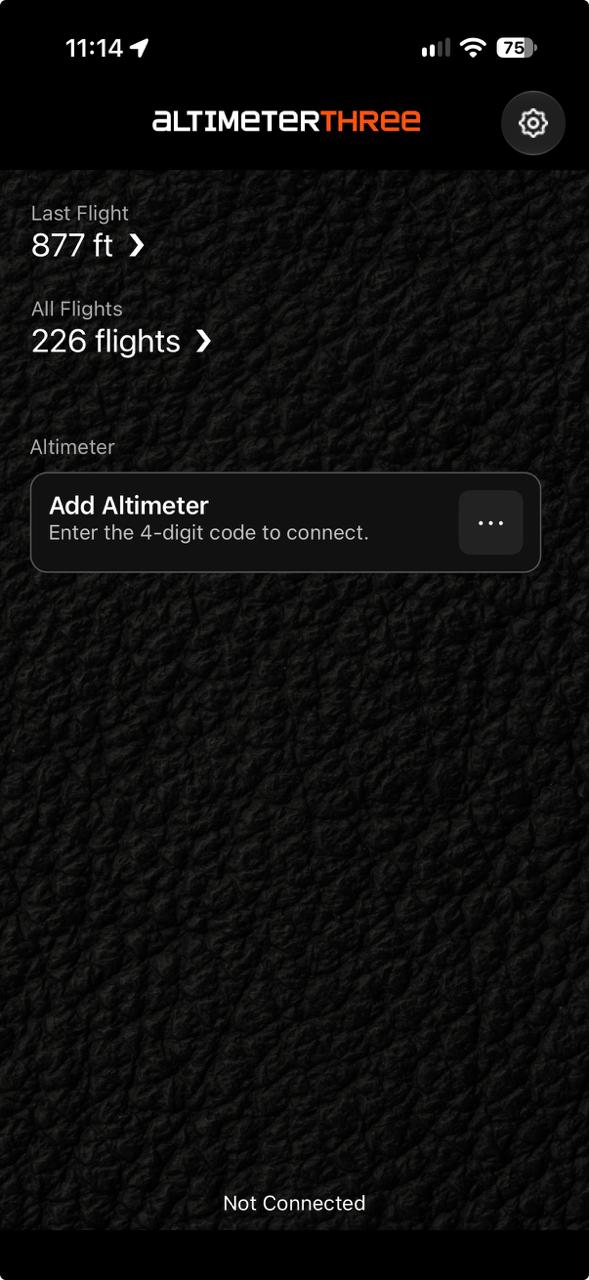
- 1Turn on AltimeterThree. The four-digit code is on the display (it is the last four characters of the name, such as AltimeterThree4E59).
- 2Open the AltimeterThree app.
- 3Tap Add Altimeter on the home screen (or Settings → My Altimeters → Add Altimeter).
- 4Enter the four-digit code, then tap Find My Altimeter.
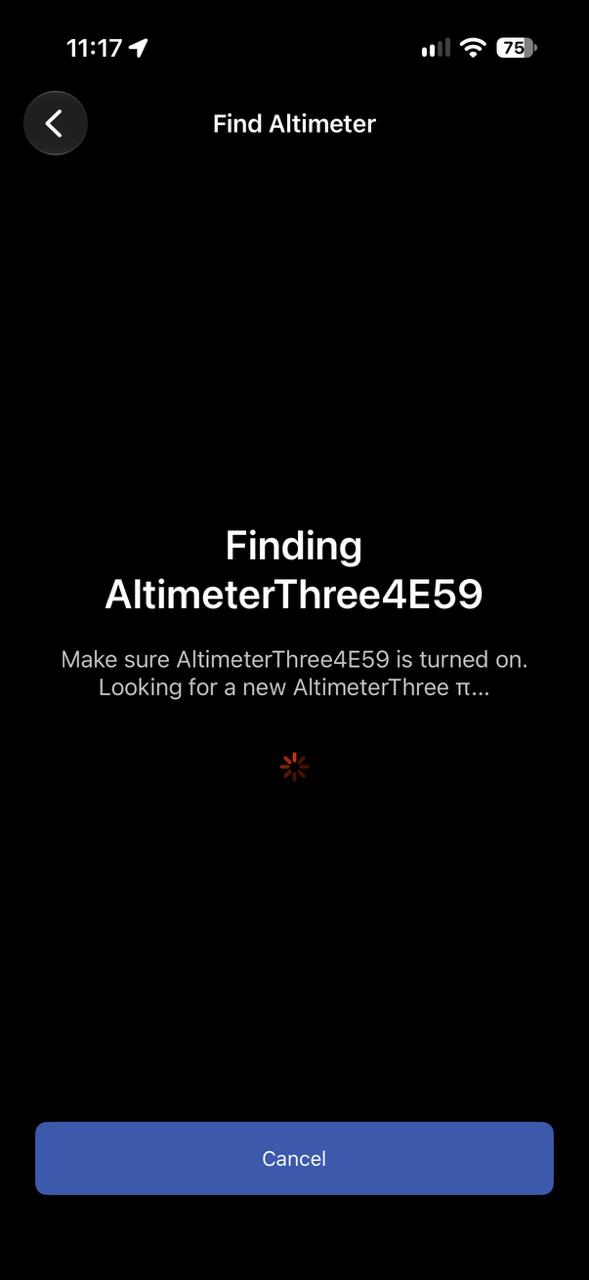
- 5The app looks for a Pi Edition nearby and connects. You do not pair it in your phone’s Bluetooth settings.
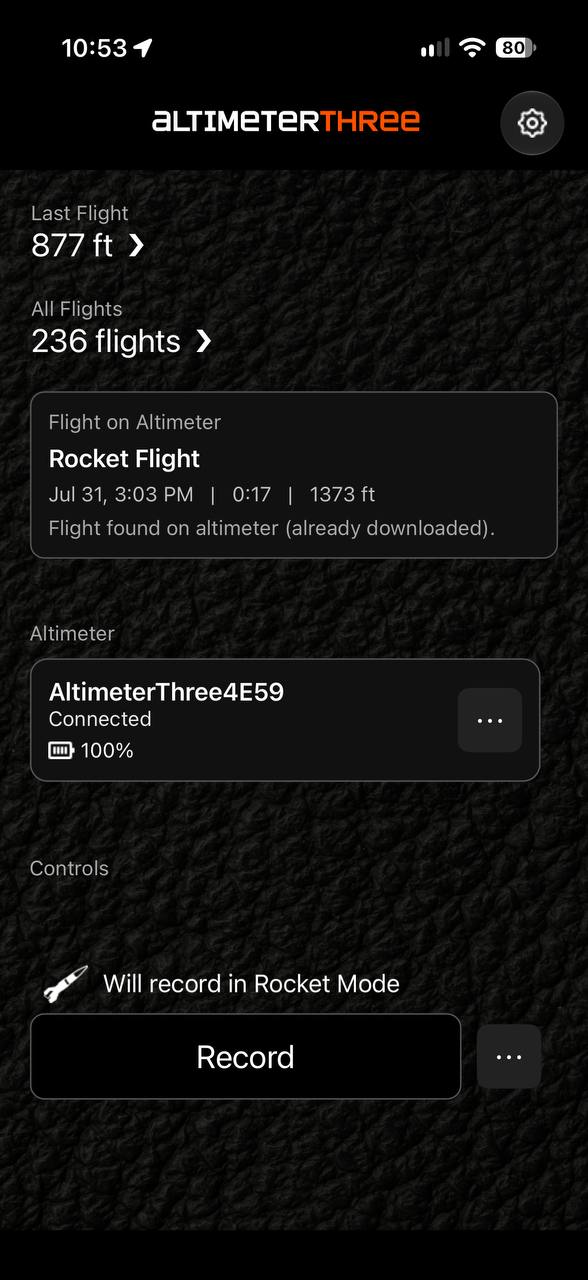
Once it has connected once, tap the altimeter card on the home screen to reconnect. The app will also try to reconnect for you after a flight, a power cycle, or when the altimeter comes back into range. Stay in the app — you do not need to toggle Bluetooth off and on.
Older AltimeterThree (pre-2025)
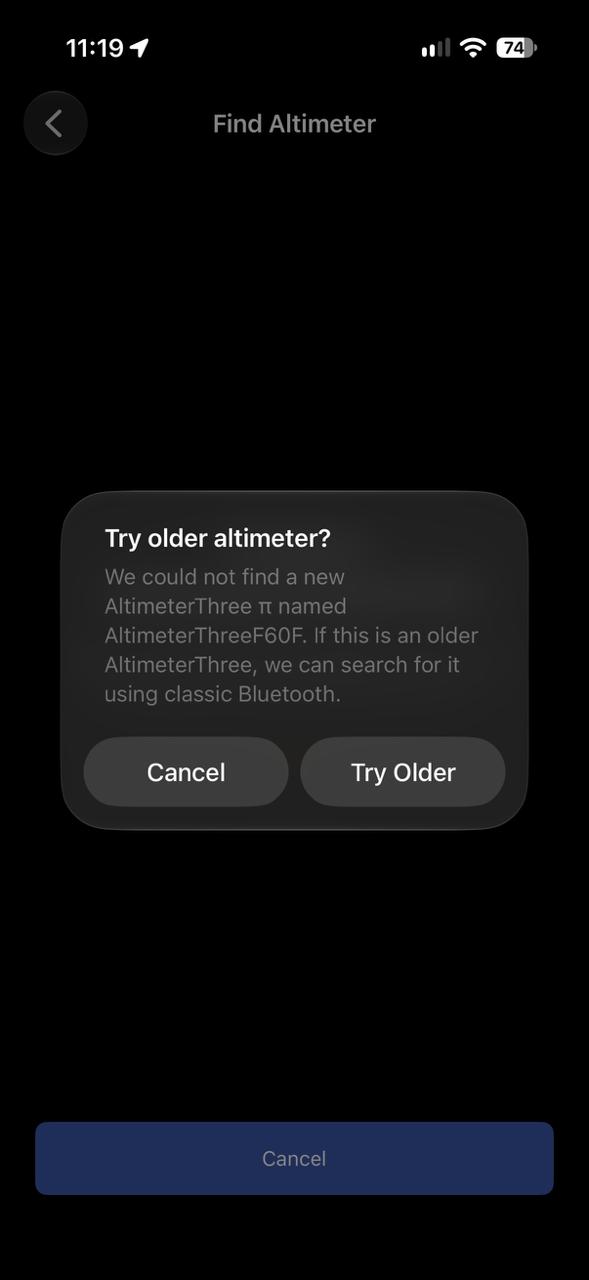
If the app does not find a Pi Edition, it will ask whether to try an older AltimeterThree. Those units use classic Bluetooth and need to be paired in your phone’s Bluetooth settings:
- iPhone / iPad: wait for the system accessory picker, then choose your altimeter in the list. This can take a little while — the app will say “Wait for your altimeter to appear in the list.”
- Android: the app opens Bluetooth settings so you can pair the altimeter there, then return to AltimeterThree.
After that first pairing, connect from the app the same way you do for a Pi Edition.
Problems?
Turn the altimeter off and on, make sure it is nearby, and try Find My Altimeter again. For an older unit, confirm it is still paired in the phone’s Bluetooth settings. If you get stuck, hold the altimeter button until you see “Resetting”, then start over.
See www.jollylogic.com/bluetooth for more help.
Controlling AltimeterThree
Connect Before Flight
When you first use your altimeter, the home screen says Add Altimeter (or shows the name as not connected). Tap it to connect. If it never appears, make sure it is turned on and nearby.
Reconnect After the Flight
During flight you will lose the Bluetooth connection — that is normal. The altimeter keeps recording.
After the flight, open the app and stay on it. It will look for the altimeter and reconnect. You can also tap the altimeter card. You do not need to turn Bluetooth off after you tap Record.
Start and Stop Recording
Start recording from the app. Stop recording from the app, or by pressing the button on the altimeter.
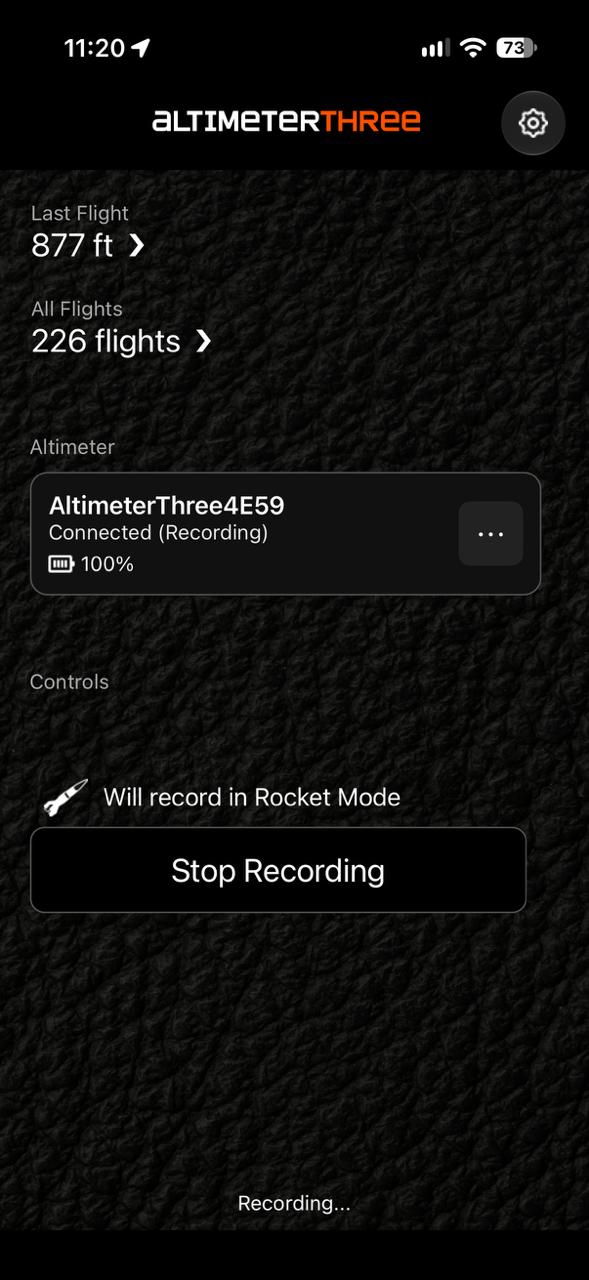
While recording, the app shows Connected (Recording), a Stop Recording button, and Recording… while you are within Bluetooth range (about 30 feet).
It is normal for the controls to disappear when the altimeter travels out of range. Don’t worry — it is still recording.
Cloud Sync
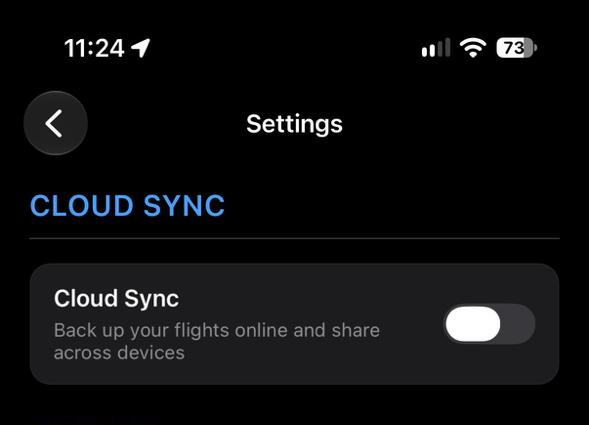
Cloud Sync backs up your flights to our servers and keeps them in sync with your other phones and tablets. Flying still works without it — it is optional.
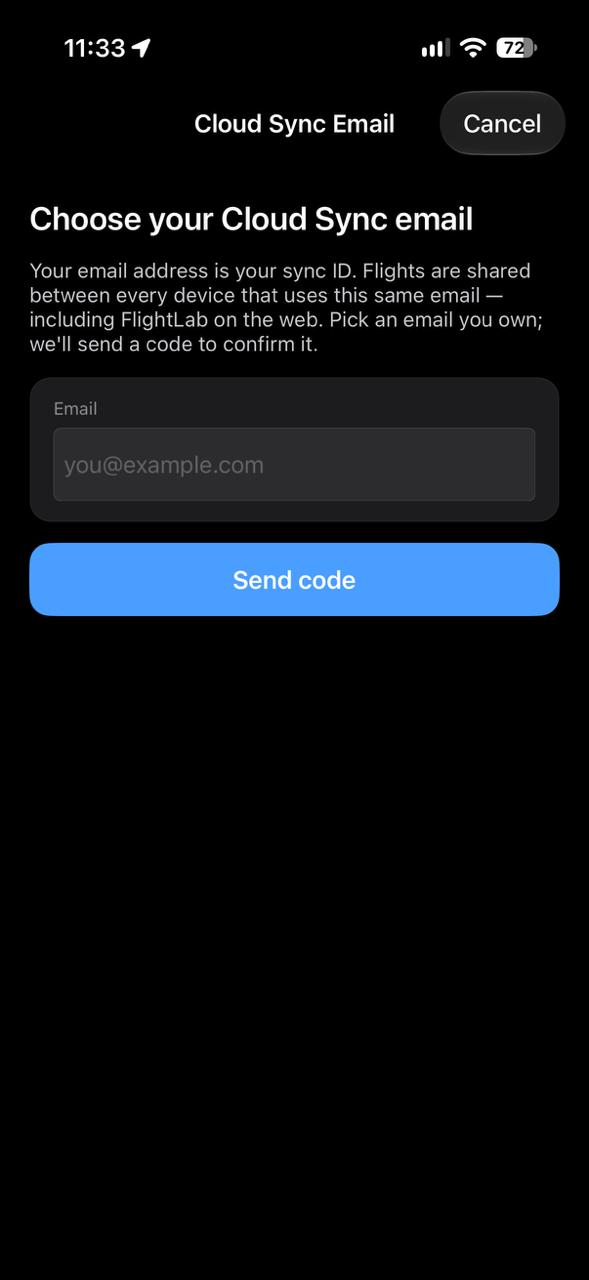
Turn it on in Settings. Your email address is your Cloud Sync ID. Use the same email on every device (and on FlightLab) so they share one flight library.
- 1Connect your AltimeterThree at least once. That activates Cloud Sync and FlightLab with your altimeter — no subscription to buy in the app.
- 2Open Settings and turn on Cloud Sync.
- 3Enter an email you own. We send a 6-digit code to confirm it.
- 4The first time, agree that Jolly Logic will not share your personal data with outside parties and will only use your flight data to improve our products.
After that, flights you download are backed up automatically. Tap Sync Now if you want to push or pull immediately. If you sign in on a second device with the same email, its flights join the same library.
FlightLab
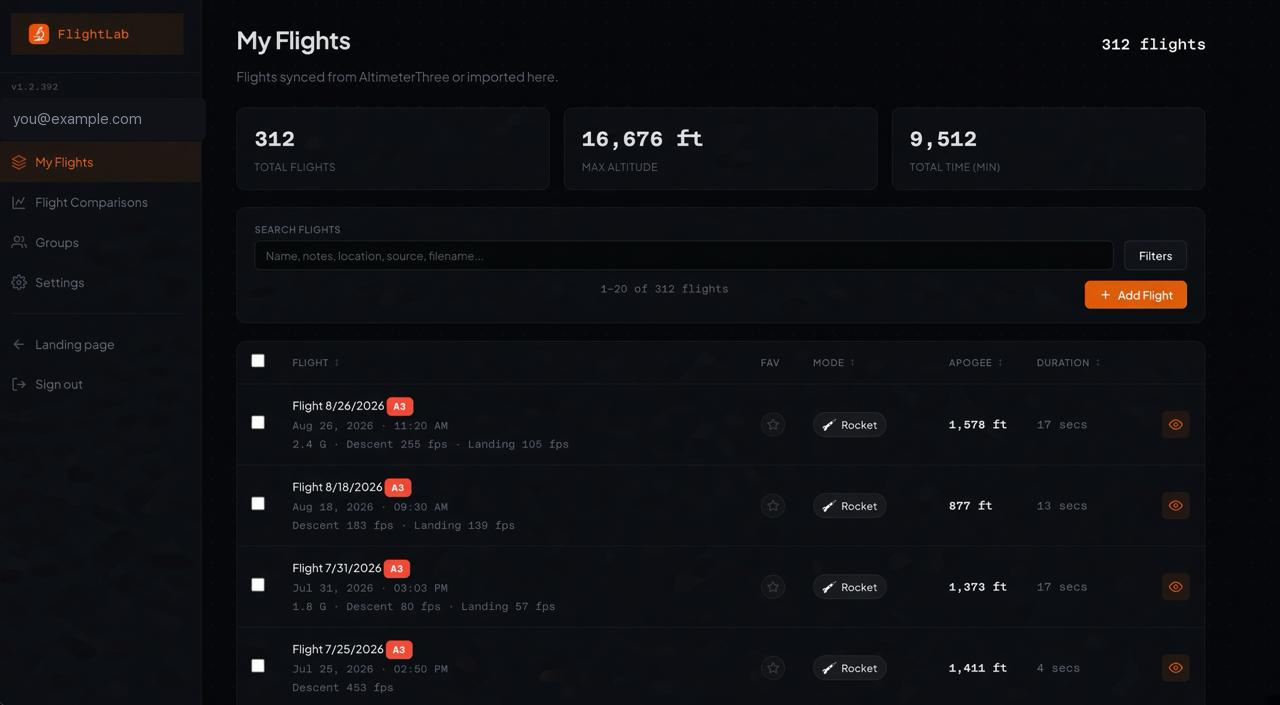
Cloud Sync also includes FlightLab, a separate website for reviewing, comparing, and importing flights in a browser. Sign in there with the same email. This guide covers the mobile app; FlightLab has its own help on that site.
Settings
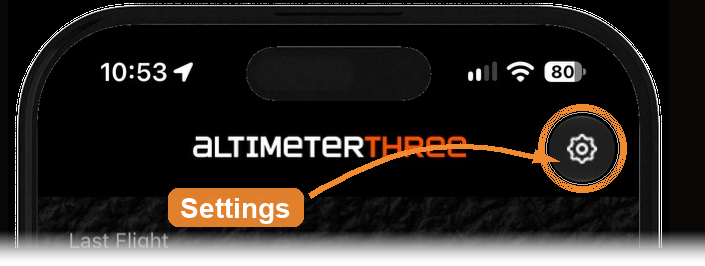
Open Settings from the gear on the home screen. Settings is one long page — scroll to see Altimeter, Cloud Sync, Display, Utilities, and Versions.
Altimeter
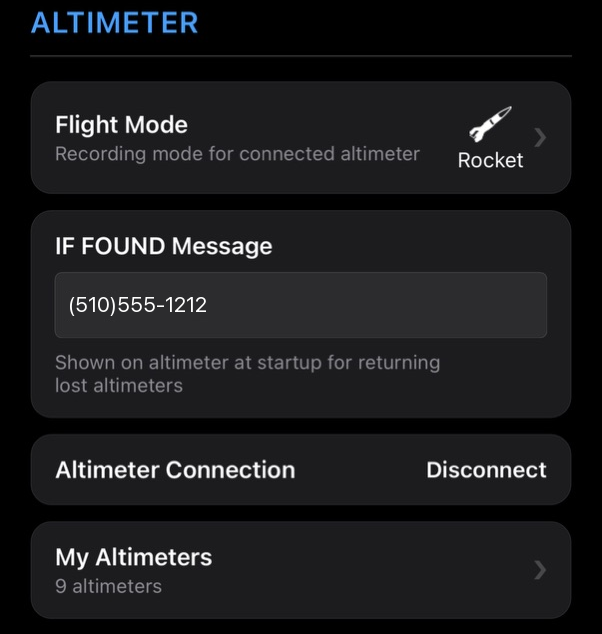
The first group is about the altimeter you fly with.
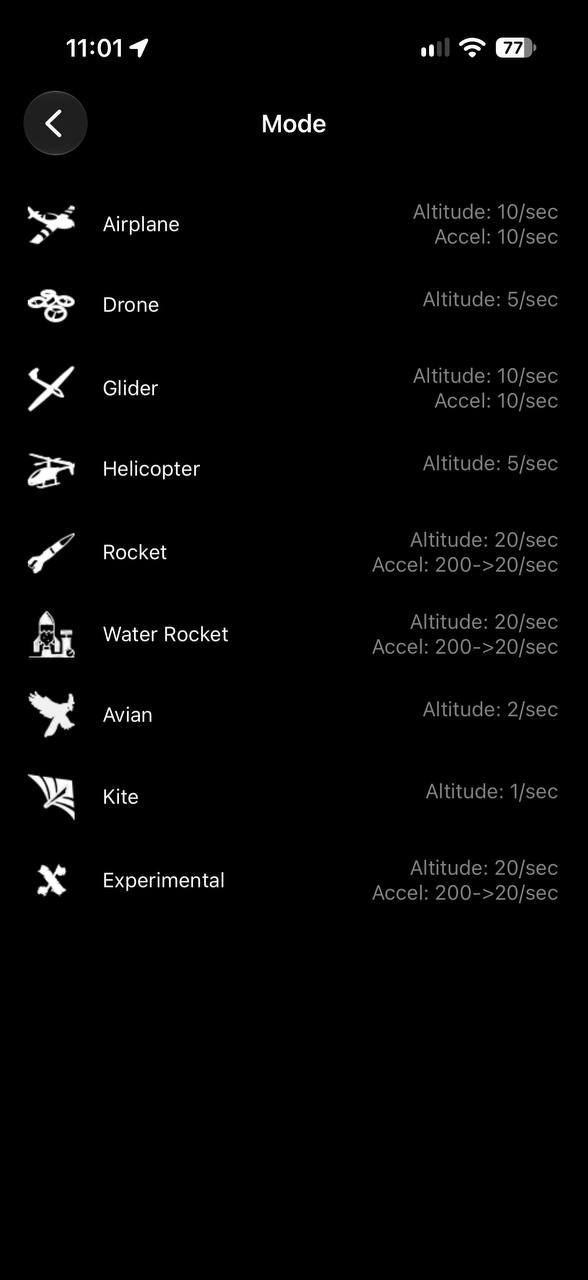
Flight Mode sets the recording rates for the connected altimeter. Tap it to choose Airplane, Drone, Glider, Helicopter, Rocket, Water Rocket, Avian, Kite, or Experimental. The current mode is shown on the right (Rocket in the example).
IF FOUND Message is shown on the altimeter when it is turned on, so someone can contact you if you lose it. A phone number or short email works well — about 15 characters fit on the display.
Altimeter Connection disconnects (or connects) the current Bluetooth link. That does not remove the altimeter from your list.
My Altimeters is every altimeter you have added. Tap it to add another with its four-digit code, or to edit or remove one.
Flight Mode
Each mode uses recording settings suited to that activity. Higher sample rates use more memory and take longer to download and display.
Acceleration is not useful for flying that includes a lot of vibration, so it is off in those modes to save memory and speed up downloads. Use Experimental if you want to examine acceleration anyway.
When acceleration is on, it is sampled at the rates shown, then stored with the altitude samples. That compression is lossless if you later integrate it.
| Mode | Altitude | Acceleration |
|---|---|---|
| Airplane | 10/sec | 10/sec |
| Drone | 5/sec | Off |
| Glider | 10/sec | 10/sec |
| Helicopter | 5/sec | Off |
| Rocket | 20/sec | 200 → 20/sec |
| Water Rocket | 20/sec | 200 → 20/sec |
| Avian | 2/sec | Off |
| Kite | 1/sec | Off |
| Experimental | 20/sec | 200 → 20/sec |
Water Rocket uses the same high-rate recording as Rocket, with thrust timing instead of motor burnout / ejection.
Cloud Sync
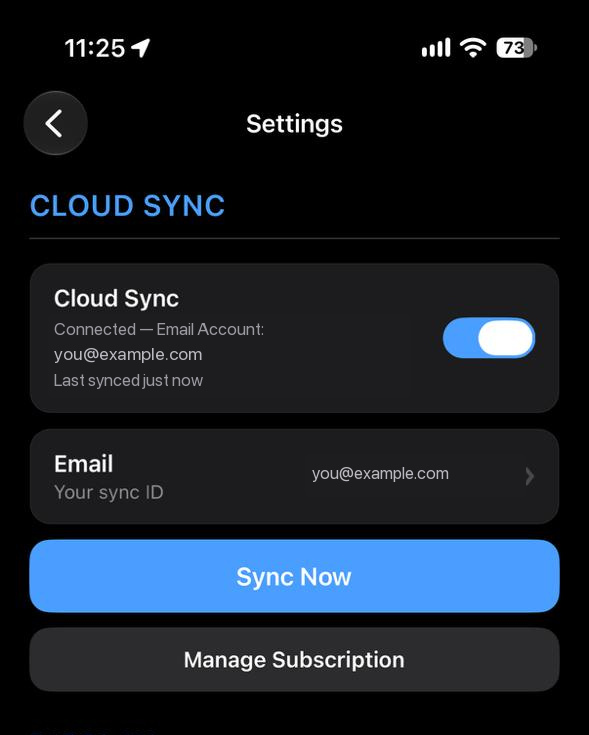
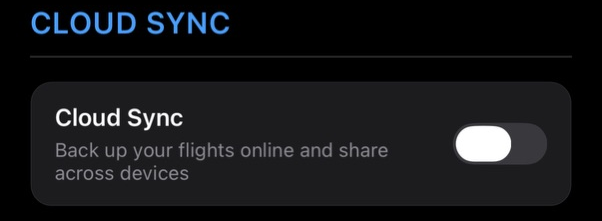
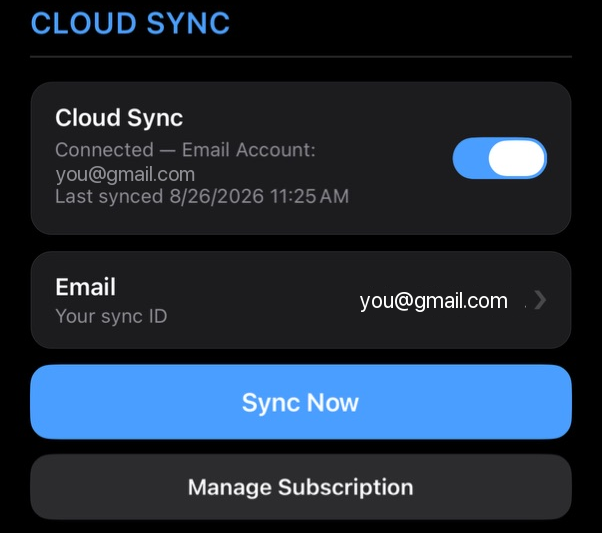
Cloud Sync is optional. Turn the switch on to back up flights from this phone or tablet and keep them in sync with your other devices. Your email address is your Cloud Sync ID — use the same email everywhere, including FlightLab.
When Cloud Sync is on you will see the connected email, the last sync time, and Sync Now if you want to push or pull immediately.
The full setup steps, including the 6-digit email code, are in the Cloud Sync section.
Display
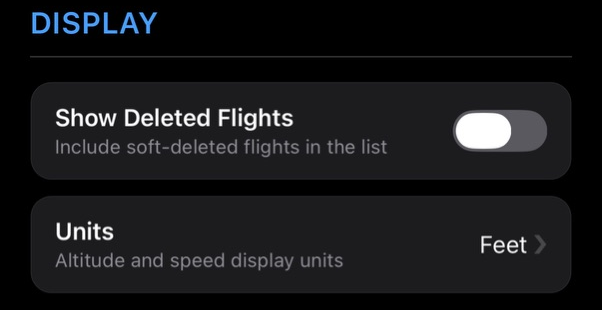
Show Deleted Flights puts flights you removed back in the list. They stay recoverable until you delete them forever.
Units switches altitude and speed between feet and meters. Tap the row to toggle. The rest of the app updates to match.
Utilities
Further down on Settings:
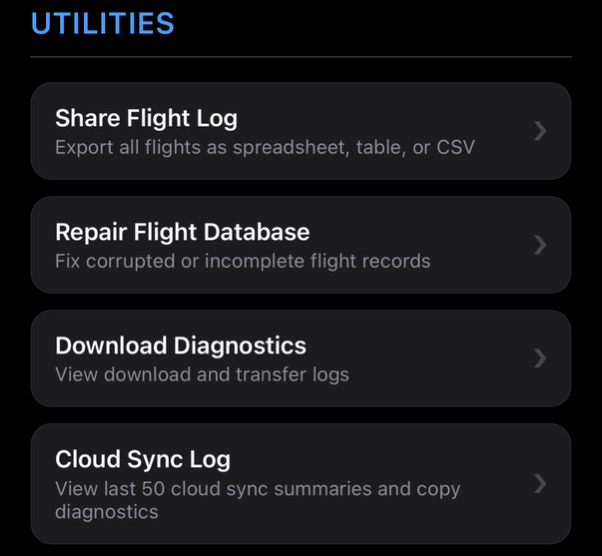
- Share Flight Log — export many flights at once as a summary table, Excel spreadsheet, and/or CSV. Choose all flights or favorites only, then email them or share to other apps.
- Repair Flight Database — if a flight will not open, try this.
- Download Diagnostics — a log of recent downloads, useful if you are working with support.
- Cloud Sync Log — the last 50 sync summaries, which you can copy if something looks stuck.
Versions
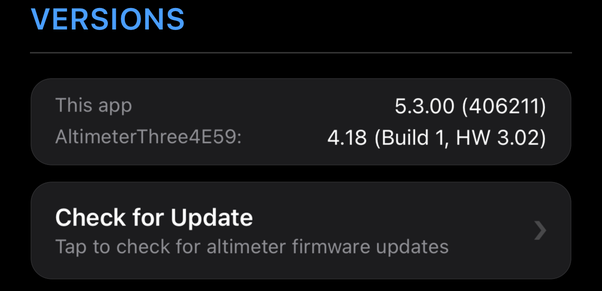
This card shows the app version and the firmware on the last altimeter you connected.
Tap Check for Update to look for new altimeter software. Keep the altimeter nearby, and make sure it has enough battery (at least 30%) before you start. Wait until the update finishes — the altimeter will restart on its own.
Flight Review
When you select a flight, the first page you’ll see is Info. There are other pages as well.
Info Page
You can rename each flight and add notes. You’ll also see automatically calculated statistics, which depend on the recording mode. We add new statistics from time to time. Mark a flight as a favorite to find it more easily later.
Chart Page
A graph of altitude and (depending on the mode) acceleration. Drag to move, pinch to zoom. Double-tap or tap Refresh to return to the original appearance.
In Rocket and Water Rocket, the app may hide pad/ground data. Tap the link below the graph, or Chart Settings, to show all of it.
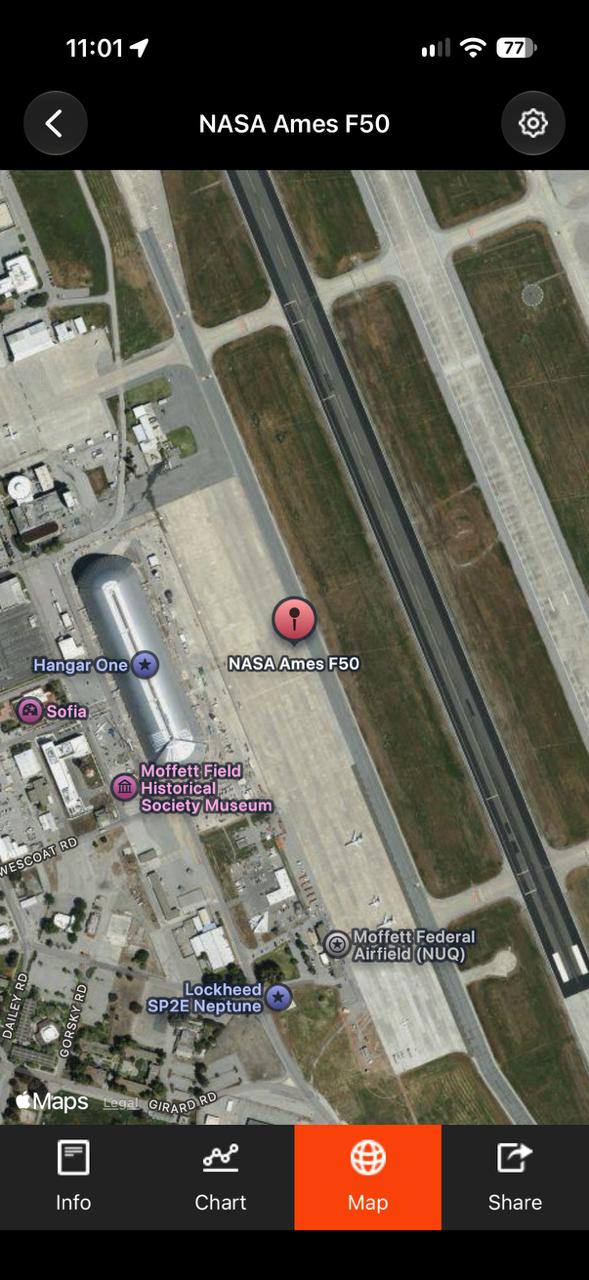
Map Page
If GPS was on when you started recording, the location of the start of your flight is shown on a map.
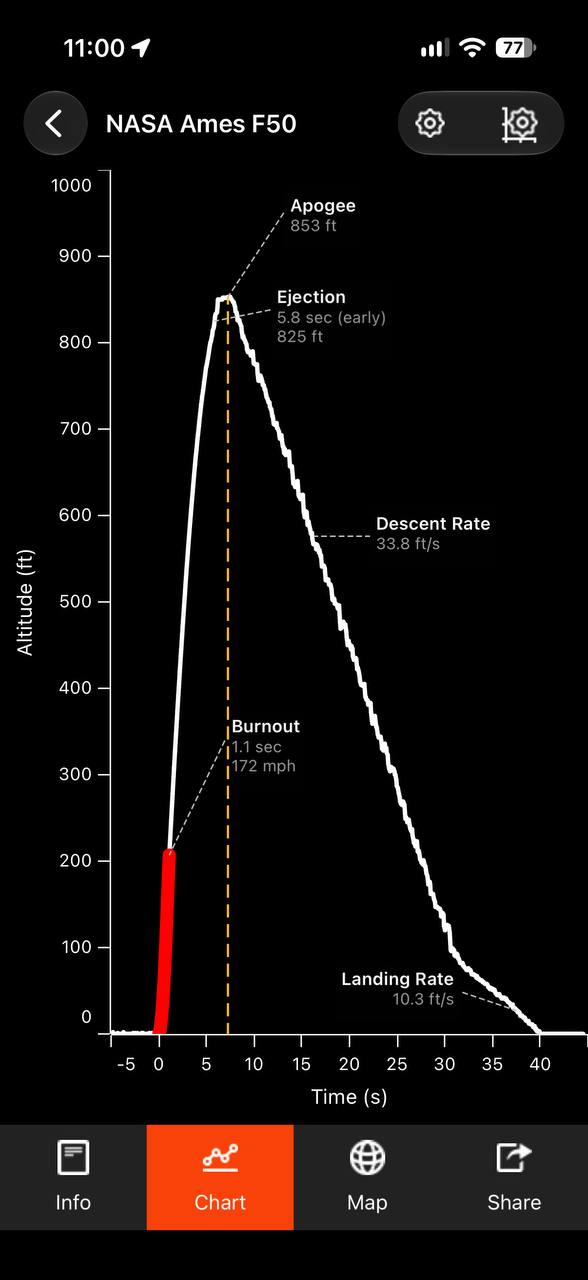
Chart markers
A quick tap selects a point; then tap the flag icon to mark it. A longer hold opens a point inspector — drag to examine different points, tap to dismiss. You can drag marker labels so they do not cover the curve.
Flight Start / Flight End control duration and how the chart is sized. The app tries to set these automatically.
Data Start / Data End control what is included in spreadsheets.
Share Page
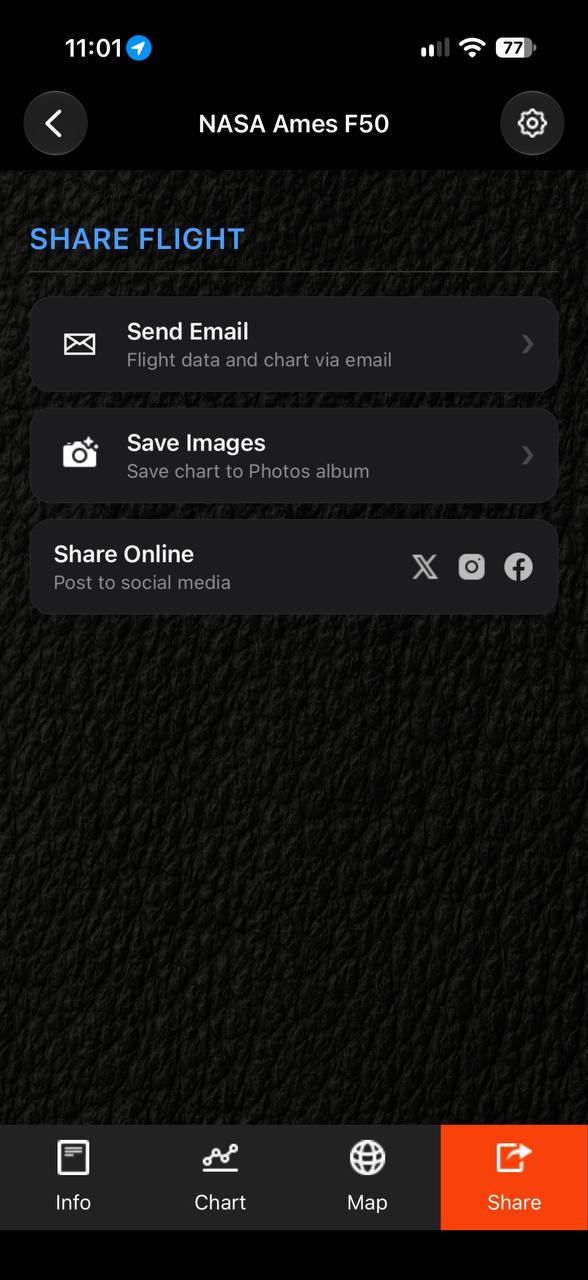
Three ways to send a flight out of the app:
- Send Email — choose any combination of a summary table of statistics, a Microsoft Excel™ spreadsheet of the flight data, and the flight graph, then the app opens a message in your mail app.
- Save Images — save the chart to your Photos album.
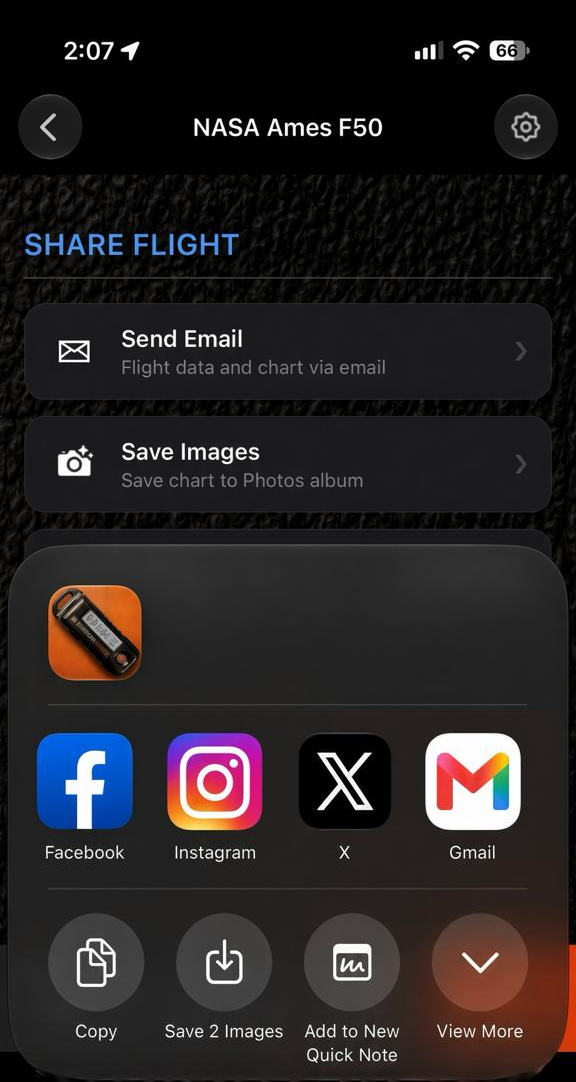
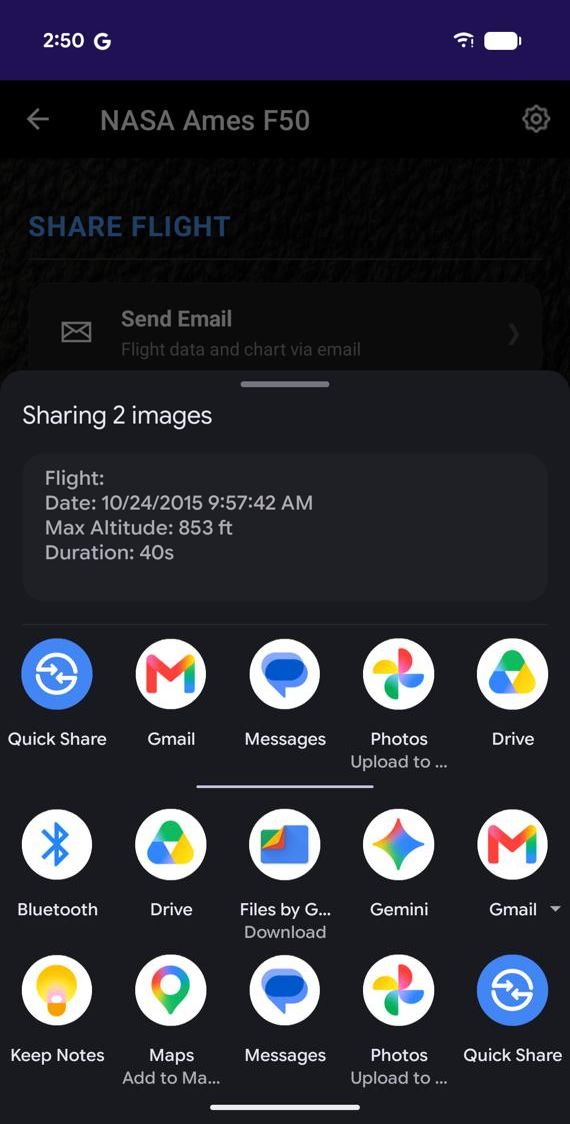
- Share Online — opens your phone’s share sheet with the chart image, a statistics table image, and a short text summary. From there you can send to Messages, Mail, AirDrop, X, Instagram, Facebook, and other apps. Each app decides what it can accept.
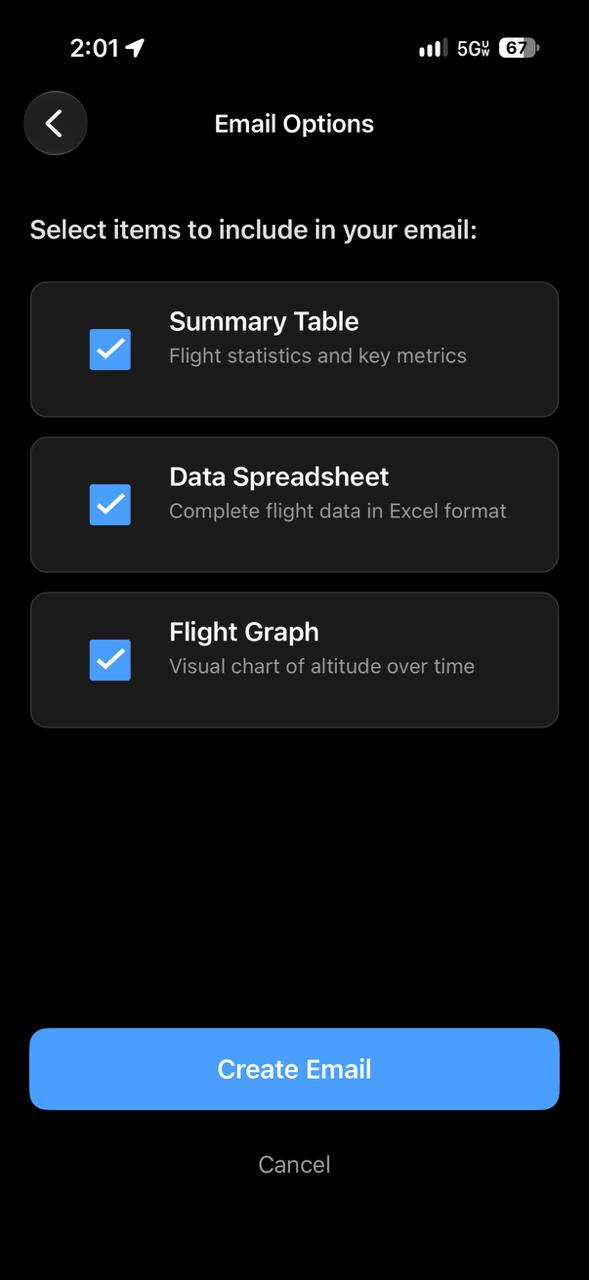
Microsoft Excel™ Spreadsheet (.xlsx)
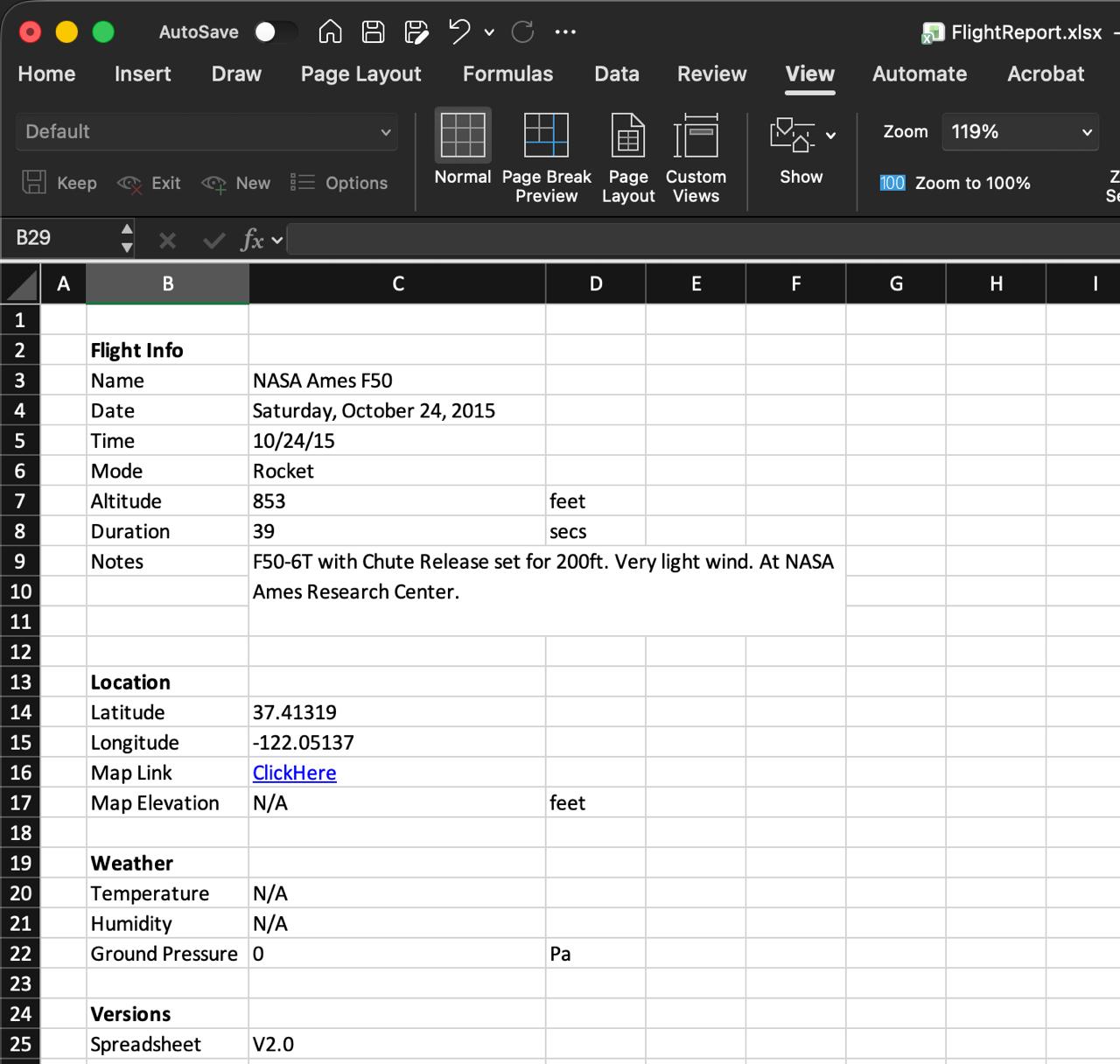
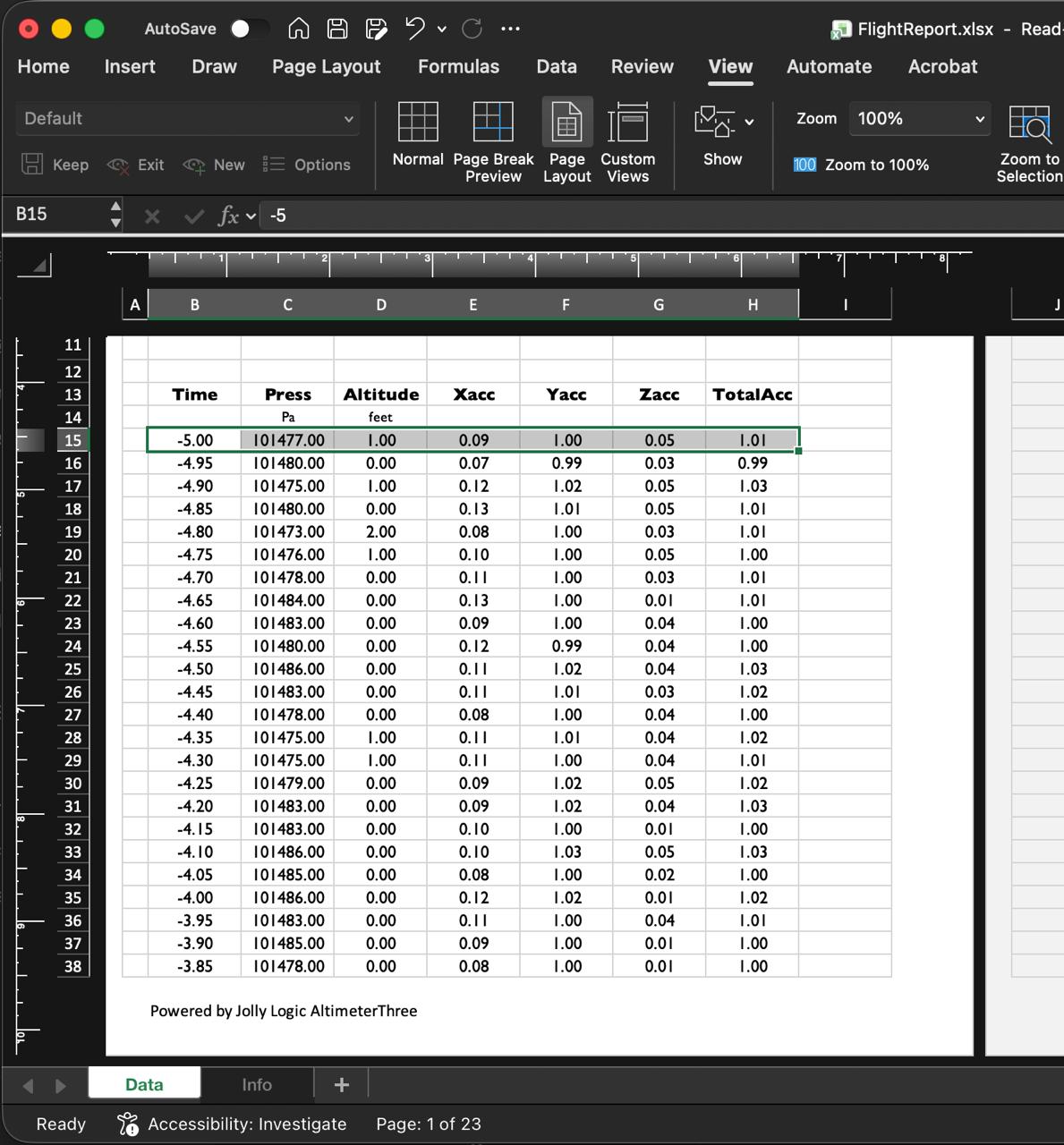
AltimeterThree creates a real Microsoft Excel™ .xlsx workbook — not just a CSV file. The Info worksheet contains the flight summary, notes, location, weather fields, and report version. The Data worksheet contains the timestamped pressure, altitude, and three-axis acceleration samples recorded during the flight.
Share Online on Apple iOS and Android
Mounting Your AltimeterThree
Yes, You Need to Add Vents
If the altimeter is completely enclosed in a fuselage or airframe, add air vent holes so AltimeterThree can sense outside air pressure.
Using the Tether Point
The slot at the nose of the altimeter can be used with string, plastic ties, leather straps, rubber bands, or Velcro® fasteners to hold the altimeter in place during flight.
- Protect the altimeter from moisture (it is NOT water-resistant). Put it in a plastic bag or plastic wrap if it might rain or encounter water.
- Shelter it from strong direct airflow. You will notice more “bumpiness” in your altitude graphs when pressure waves from turbulence disturb the altimeter. Consider wrapping it with a bit of fabric to buffer it from airflow.
- Make sure it’s secure. Don’t tie it to something that might also fall off. Give it its own secure attachment.
It may take a little trial-and-error to achieve the optimal mounting method. Look for best practices on online bulletin boards and social media sites.
Using Optional Mounts
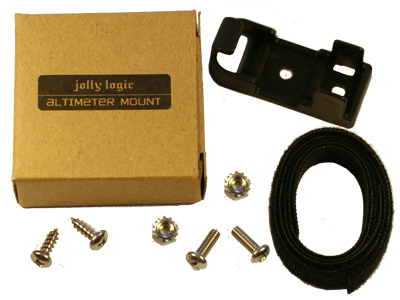
Jolly Logic and selected resellers also offer optional mounts (like the Jolly Logic Snap Mount) for AltimeterThree.
Recharging
Plug the AltimeterThree cable into any USB port to recharge, or (if you have one) you can use your own Micro-B USB charger. If you don’t see a light when you plug it in, the USB port must not have power. Try another one.
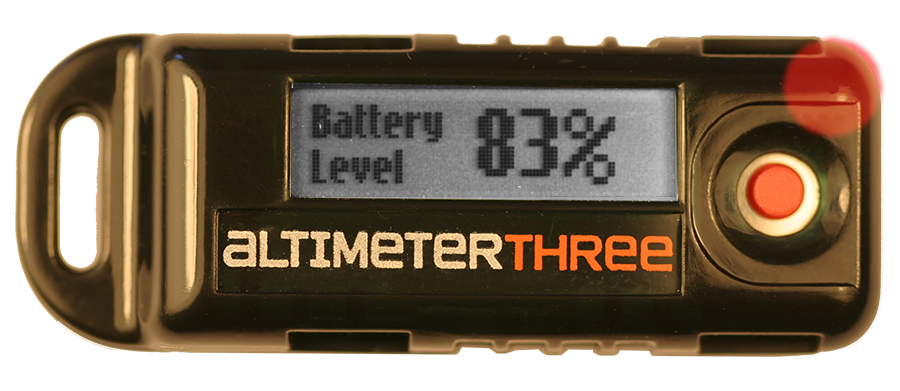
Red Light
Your altimeter is charging correctly. Recharging should be complete in less than 2 hours.
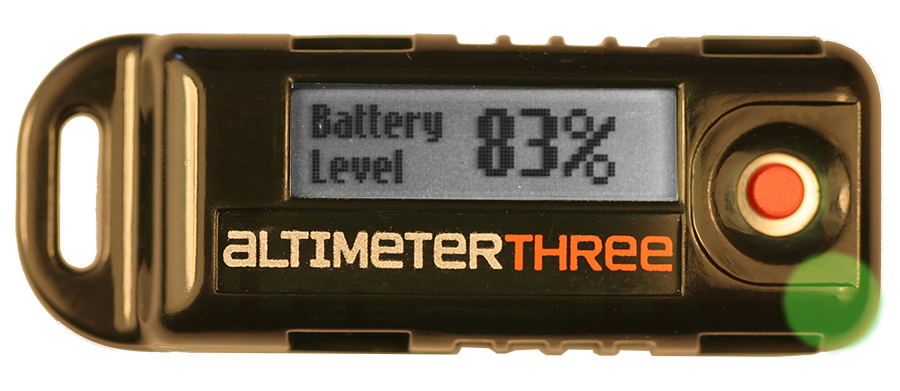
Green Light
Your altimeter is 100% charged.
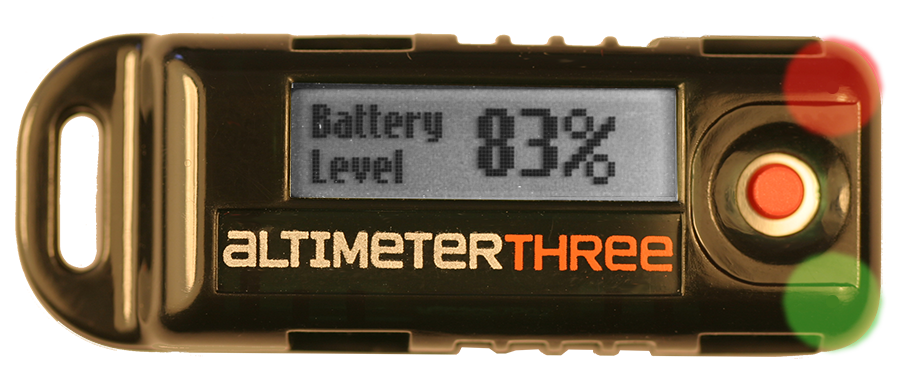
Red + Green Light
Problem! Either this USB port is not providing enough power, or your battery has a problem.
- Try another USB port.
- Open your altimeter and make sure the battery connector is snapped in. See our website for instructions on how to do this.
- Contact support@jollylogic.com.
Repairing Your Altimeter
Parts of your altimeter are replaceable.
- Plastic case (snaps together)
- Battery (connector presses into board)
- LCD display (lift the black flip latch, insert connector, close latch)
You’ll need to open the plastic case to replace parts. One handy tool is a thin wooden coffee stirrer — soft enough not to scratch the case and usually narrow enough to press in the plastic tabs. But you can use any flat device that fits in the tab holes.
The trick to pressing in two side tabs at once is to clamp the ends of the altimeter between your thumb and forefinger so that as the case begins to open you can keep the first tab from re-snapping as you loosen the second one. Once you have two tabs on one side unsnapped, open the case like a book.
Visual repair guides: www.jollylogic.com/support. Please be gentle.
Support and Troubleshooting
Quick Tips for Solving Bluetooth Connection Issues
- Stay in the AltimeterThree app and tap the altimeter card to connect
- Turn the altimeter off and on
- For an older (pre-2025) AltimeterThree, confirm it is paired in the phone’s Bluetooth settings
For More Support
Have questions or suggestions? Contact us at support@jollylogic.com. We’d love to hear from you, including your experiences with AltimeterThree, and we love it when you share your flight data.
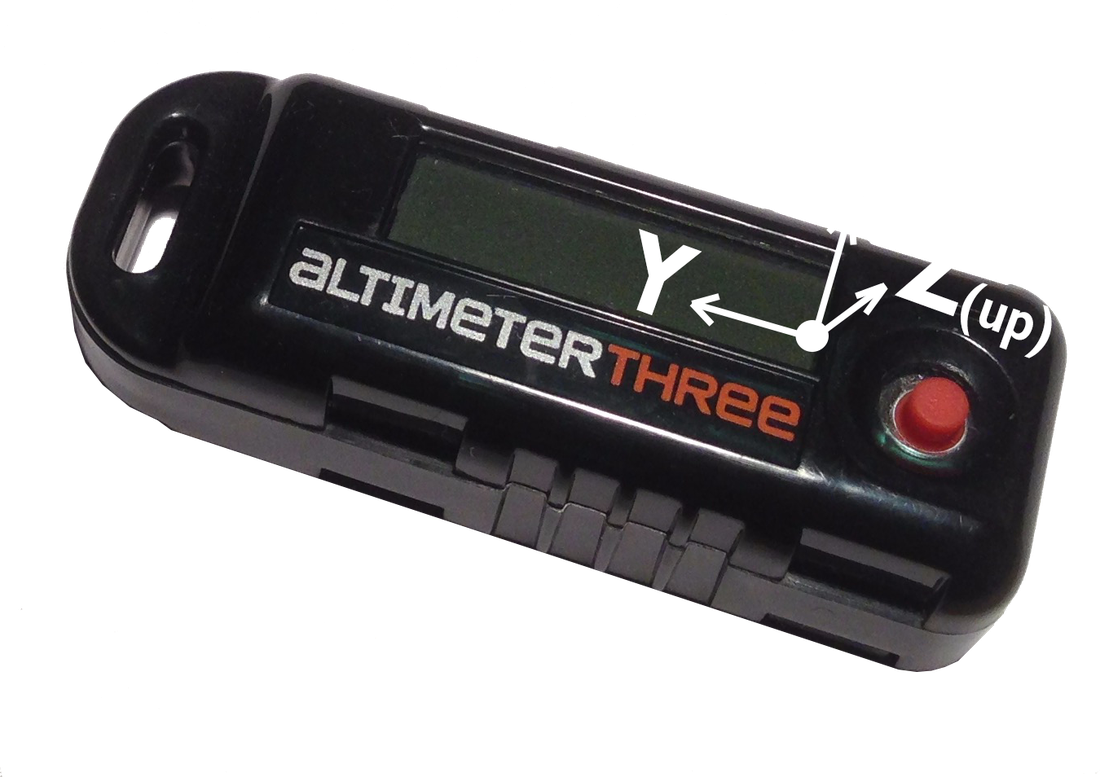
- Graph flight altitude to 29,500 feet (9000 meters)
- Record acceleration in three axes up to 24 Gs
- Examine data in a Microsoft Excel™ spreadsheet
- Share flight reports via email and your phone’s share sheet
- Cloud Sync backs up flights across your devices, and includes FlightLab
- Modes for drones, rockets, water rockets, planes, helicopters, gliders, kites, and falconry
- Recharge from any common USB port
Requires an Apple or Android smartphone or tablet with Bluetooth®. Pretty much any Apple or Android phone or tablet made in the last few years will work (any iPhone newer than the iPhone 4S; recent iPads; Android 4.4 or higher with BLE — load the free AltimeterThree app to check). Older AltimeterThree units use classic Bluetooth and pair in the phone’s Bluetooth settings.
Visit www.jollylogic.com for complete information
© Jolly Logic, LLC. Jolly Logic® is a registered trademark of Jolly Logic, LLC.